

You can run a basic Outlook ticketing system with a shared mailbox, color categories, rules, and flags. It costs nothing extra if you already pay for Microsoft 365, and it works well for a small team handling a modest number of requests.
The trouble starts when more people work out of the same inbox. Two agents answer the same customer, or a request sits for days because each person assumed someone else had it. And when your manager asks how fast the team responds, nobody has a real number.
This guide covers why teams start with Outlook, how to set it up step by step, where it breaks down, and how an email ticketing system like Desk365 fixes those gaps without moving your team off Microsoft 365.
TL;DR
- You can run a basic Outlook ticketing system with a shared mailbox, categories, rules, flags, and saved replies. It works for small teams with low request volume.
- Only the sorting runs on its own. Ownership, status, follow-ups, and closing all depend on agents updating labels by hand.
- Outlook has no ticket numbers, SLA tracking, reporting, or warning when two agents reply to the same email.
- Teams who have tried it report the same problems: duplicate replies, lost threads, and no clear view of who is handling each request.
- An email ticketing system like Desk365 turns every email to your support address into a tracked ticket. It adds SLAs, automation, and asset management, and agents can work on tickets inside Microsoft Teams.
What is Microsoft Outlook ticketing system?
An Outlook ticketing system is a shared mailbox in Microsoft 365 that a team uses to receive, sort, and answer support requests. Outlook has no built-in ticketing feature. Teams build the workflow themselves with features Outlook already has.
A typical setup works like this. Requests go to an address like support@yourcompany.com, and everyone on the support team can open that mailbox. Categories show who owns each email and what stage it’s in. Rules move messages into folders, and flags remind people to follow up.
It works because everyone already knows Outlook. The catch is that each email is still just an email. It has no ticket number, no owner field, and no clock tracking how long the requester has waited.
What is an email ticketing system?
An email ticketing system is help desk software that turns each incoming email into a ticket with its own ID, owner, status, and priority. People still email your support address as usual. Your team works those emails as tickets instead of inbox messages.
Here is how email-to-ticket conversion usually works:
- Someone emails your support address.
- The system creates a ticket and sends an automatic reply with the ticket number.
- Rules assign the ticket to an agent or a group.
- The agent replies from the help desk, and the requester gets it as a normal email.
- Every reply, internal note, and status change stays on that one ticket.
The table below shows how a shared Outlook inbox compares with a typical email ticketing system.
| Capability | Shared Outlook inbox | Email ticketing system |
|---|---|---|
| Unique ticket number | No | Yes, assigned automatically |
| Clear owner | Category label set by hand | Assignee field, often set by rules |
| Status tracking | Categories or folders | Status field with full history |
| Duplicate reply warning | No | Collision detection |
| Response time targets | Manual flags and reminders | SLA timers with escalations |
| Reporting | Manual export to Excel | Built-in reports |
| Self-service | No | Support portal and knowledge base |
If you want to compare specific tools, our list of the best email ticketing systems breaks down the main options.
Why SMBs use Outlook as a ticketing system
Most small teams start with Outlook because it’s already there. For a team of two or three people, that’s often the right call.
- No extra cost. Shared mailboxes usually don’t need their own Microsoft 365 license. Microsoft only requires an Exchange Online Plan 2 license when the mailbox goes over 50 GB, uses in-place archiving, or is on litigation hold.
- No training. Your team already reads and sends email in Outlook all day.
- Nothing new for requesters. Employees and customers keep emailing one address. They don’t need to learn a portal.
- Quick setup. An admin can create a shared mailbox from the Microsoft 365 admin center in a few minutes.
- Fine at low volume. When a few people handle a handful of requests a day, the gaps rarely show.
That last point is the real test. Outlook holds up until volume, team size, or response expectations grow past what manual tracking can handle.
How to set up a ticketing system in Outlook
You need six pieces to turn Outlook into a working ticket tracker: a shared mailbox, categories, rules, flags, saved replies, and an optional tracking list. Here’s how to set up each one.
Rules handle the sorting. Every step after that depends on an agent remembering to do it.
Step 1: Create a shared mailbox in Microsoft 365
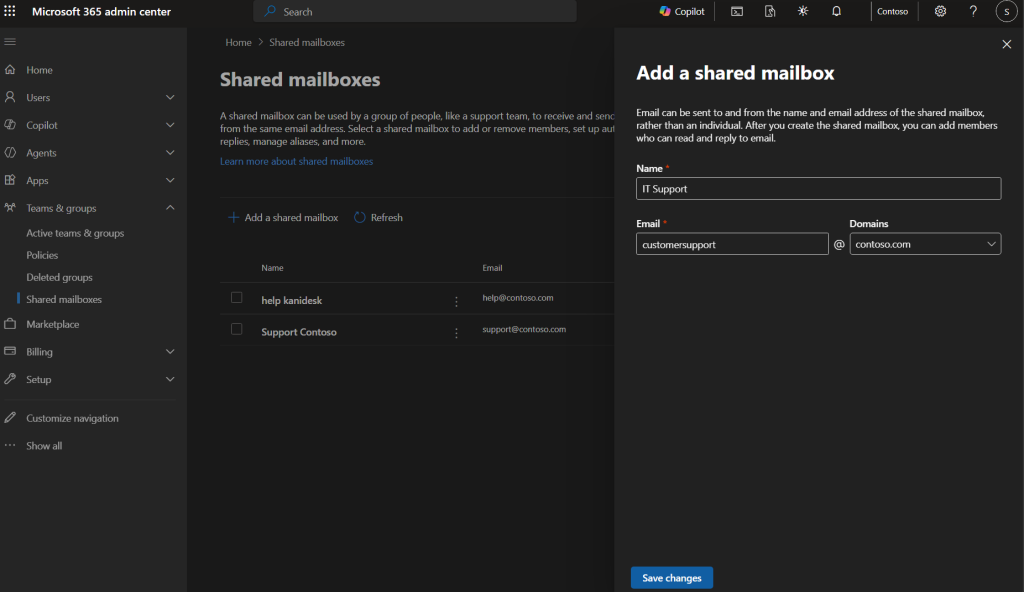
A shared mailbox gives requests one home instead of landing in one person’s inbox.
- Sign in to the Microsoft 365 admin centre with an account that has the Exchange admin role.
- Go to Teams & Groups > Shared mailboxes.
- Select Add a shared mailbox, enter a name, and check the email address.
- Save, then select Add members to this mailbox and add your support team.
Members with Full Access can read and manage the mail. To reply as the shared address, each person also needs Send As or Send on Behalf permission. If automapping is on, the mailbox shows up in each member’s Outlook after they restart it.
Step 2: Use categories to show status and owner
Categories are color labels you can put on any email. In a shared mailbox, they act as your status and owner fields.
Create two sets:
- Status: New, In progress, Waiting on requester, Resolved
- Owner: one category per agent, such as “Priya” or “Mike”
Then agree on one rule as a team. Every email gets exactly one status and one owner. Without that habit, the whole setup drifts within a week or two.
If your team uses new Outlook for Windows, add the shared mailbox as an account, not as a shared folder. Microsoft lists Categories as one of the settings you can manage for a shared mailbox added that way. Some teams have reported categories greying out or not syncing in new Outlook, so test it with everyone before you rely on it.
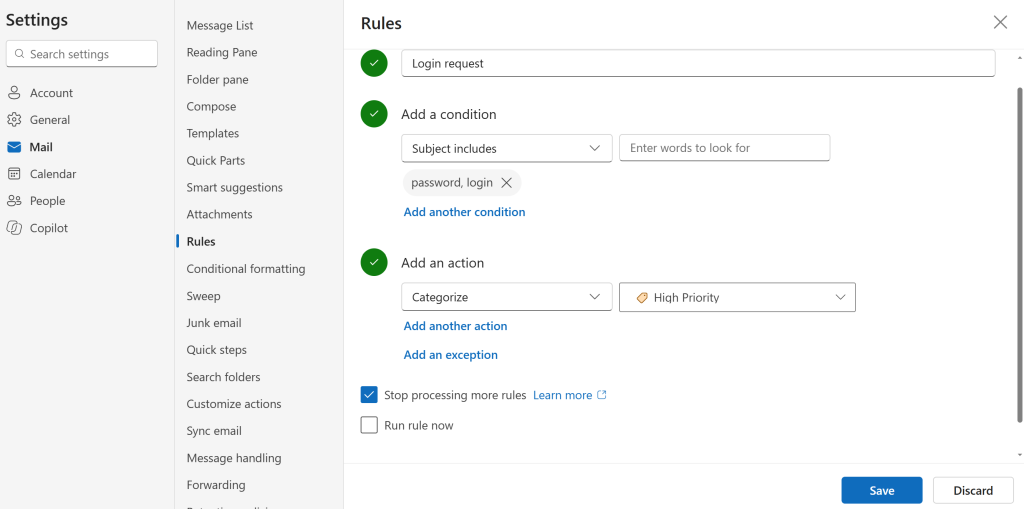
Step 3: Set up rules to sort incoming requests
Rules sort and label emails the moment they arrive. They take care of the first minute of triage on every request.
A few rules that work well for a support mailbox:
- Move emails with “password” or “login” in the subject to an Access folder.
- Add a High priority category to emails from your leadership team.
- Add the New category to every incoming message.
Set these rules on the shared mailbox, not on each person’s own mailbox. Microsoft has a support article on adding rules to a shared mailbox. Keep the list short. Outlook rules can sort and label, but they can’t spread work evenly across agents or escalate an email nobody has answered.
Step 4: Use flags and reminders as due dates
Flags let you set a follow-up date on an email, which works as a simple due date. For example, an agent waiting on a replacement keyboard can flag that request for Thursday, so it comes back to the top.
Flags work best for individuals. Reminders on shared mailbox items may not alert every member, depending on how each person added the mailbox to Outlook. Test this with your team before you treat flags as shared deadlines.
Step 5: Save common replies as templates
Most support teams answer the same handful of questions again and again. Saved replies cut that time down.
- In new Outlook and Outlook on the web, use My Templates to save and insert reply text.
- In classic Outlook for Windows, a Quick Step can insert response text and file the email in one click.
New Outlook also has Quick Steps, but with fewer actions than classic Outlook. It can’t insert template text as part of a Quick Step.
Step 6 (optional): Track requests with Microsoft Lists and Power Automate
Some teams add a tracking layer on top of the mailbox. A Power Automate flow watches the shared mailbox and adds a row to a Microsoft List each time a new email arrives. The list holds a request ID, the sender, the date, a status, and an owner. A Microsoft Form can feed the same list for people who prefer a form to an email.
This gets you closer to a real ticket record, and the list gives you something you can filter and count. The cost is upkeep. Someone has to build the flow, fix it when a connection breaks, and keep the list in step with what actually happened in the inbox. Our beginner’s guide to Power Automate covers the basics if you want to try it. Some teams go a step further and build a SharePoint ticketing system or a ticket tracker in Excel.
Disadvantages of using Outlook as a ticketing system
utlook was built for email, not for tracking work across a team. The setup above holds together at low volume, but these gaps get wider as requests pile up.
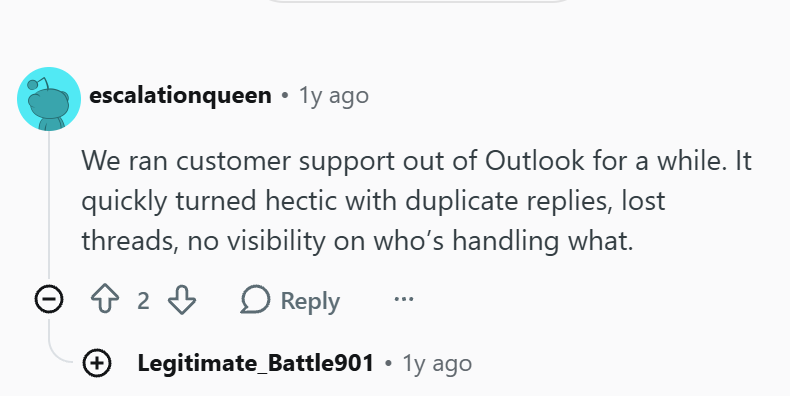
Teams who have tried it say the same thing. One Reddit user wrote that their team ran customer support out of Outlook for a while, and it “quickly turned hectic.” They named three problems: duplicate replies, lost threads, and no visibility into who was handling what.
Each of those problems traces back to how a shared mailbox works. The sections below explain why they happen and what else goes missing as your team grows.
No ticket numbers or clear ownership
An email in a shared mailbox has no unique ID and no single owner. Categories help, but anyone can change them or forget to add one.
The usual result is two agents answering the same person, or nobody answering because each thought the other had it. Outlook also has no collision warning to tell an agent that a teammate is already replying.
Status depends on people remembering to update it
In Outlook, status is a color label. It’s only accurate if every agent updates it every time.
On a busy day, that slips. An email marked “In progress” might have been solved two days ago, or quietly dropped. Managers end up asking for updates in chat because they can’t trust what the inbox shows.
No SLA tracking or escalation
Outlook can’t measure how long a request has waited or warn anyone before a deadline passes. A flag reminds one person. It won’t escalate to a manager when a response target is missed.
If you promise a first reply within four hours, you have no reliable way to know whether you kept that promise. Our guide to service level agreements explains what to measure once you’re ready.
Reporting means exporting to Excel
Outlook can’t tell you how many requests came in this month, how fast your team replied, or which issues come up most often. To get those numbers, someone exports mail data and builds a spreadsheet by hand.
That report is out of date as soon as it’s done. It also misses anything that wasn’t categorized correctly in the first place.
Context gets lost in forwarded threads
Support work often means pulling in someone else. In Outlook, that usually means forwarding the email. The forward starts a new thread in someone’s personal inbox, and the shared mailbox loses track of what happened next.
There’s also no private note field on a shared email. Agents discuss the issue in Teams chat or side emails, and the next person who opens the request can’t see any of it.
No self-service portal or knowledge base
Every question has to arrive as an email and be answered by a person. Requesters can’t check the status of their request, and they can’t look up an answer to a common question on their own.
Password resets and how-to questions are a good example. A searchable knowledge base can answer many of them before they ever reach your team.
Classic and new Outlook don't behave the same
Microsoft is moving users to new Outlook for Windows, and several features this setup depends on work differently there. Quick Steps have fewer actions, and shared mailbox categories depend on how each person added the mailbox.
If half your team is on classic Outlook and half is on new Outlook, the same workflow can look and act differently on each screen. That makes a manual system even harder to keep consistent.
Signs your team has outgrown the shared inbox
If two or more of these sound familiar, Outlook is probably costing you more time than it saves.
- People follow up to ask whether anyone saw their first email.
- Two agents have replied to the same request more than once this month.
- You can’t say how many requests came in last week without exporting data.
- You’ve promised response times that you have no way to measure.
- New agents need a walkthrough of category colors and folder rules before they can help.
- Someone maintains a flow or spreadsheet just to keep track of requests.
- The same questions keep coming in, and there’s nowhere to send people for answers.
How Desk365 turns your Outlook inbox into an email ticketing system
Desk365 is a help desk built for teams that run on Microsoft 365. You keep your support email address, and every message sent to it becomes a ticket with a number, an owner, a status, and an SLA. Agents can work those tickets in the web portal or inside Microsoft Teams.
Shared mailbox emails become tickets automatically
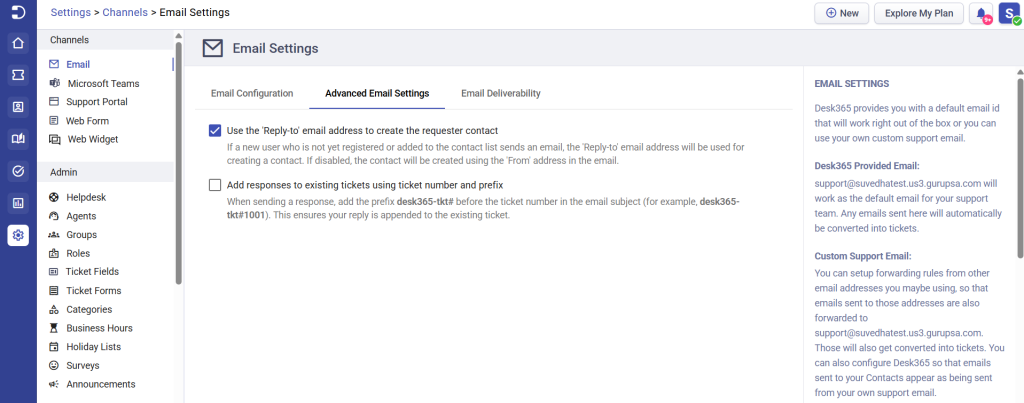
Desk365 gives you a built-in support address, and you can also use your own, such as support@yourcompany.com. You set up a forwarding rule in Office 365 from your existing mailbox to Desk365, and each new email turns into a ticket.
People keep emailing the same address they always have. Agents reply from Desk365, and the requester gets a normal email back. Each ticket has a unique number, so everyone can refer to it later.
Two smaller features fix the most common shared inbox headaches. Collision detection warns an agent when a teammate is already working on the same ticket. And when an agent forwards an email they received directly, Desk365 can keep the original sender as the requester instead of the agent.
Manage tickets inside Microsoft Teams
Desk365 runs inside Microsoft Teams, so email tickets don’t stay locked in a browser tab. Agents can view and update email-based tickets through the Desk365 Agent Bot in Teams, or in the web portal.
Employees can raise tickets from Teams too, using the Support Bot. For internal IT support, that matters because Teams is where most people already spend their day. Our guide to the Microsoft Teams ticketing system covers how this works in more detail.
Set SLAs and escalate before deadlines slip
SLA policies set response and resolution targets for each priority level. Desk365 sends reminders before a response or resolution deadline arrives, and escalation rules notify the right person when a ticket breaches its SLA.
You can set business hours and holidays for each team or region, so the SLA clock only runs when your team is working. SLA reports then show how often you actually hit your targets.
Automate assignment, replies, and routine updates
Automation rules handle the work that Outlook categories and rules can’t. A few examples:
- Assign tickets by round robin or by agent workload so work spreads evenly.
- Route tickets to the right group based on keywords, sender, or form fields.
- Send an automatic reply with the ticket number as soon as a ticket is created.
- Close tickets that have waited on the requester past a set time.
Canned responses replace personal Outlook templates and are shared across the whole team. If assignment is your biggest pain point, here’s how to automate ticket assignment in Microsoft Teams.

Connect tickets to IT assets
Desk365 includes IT asset management in the same help desk. Agents can link a ticket to the laptop or license it’s about and see that asset’s history right next to the ticket.
The asset module covers lifecycle tracking, software licenses, vendors, and depreciation. With the Microsoft Intune integration, managed devices sync into Desk365, so agents already have device details when a ticket comes in.
Outlook vs Desk365 at a glance
| Need | Shared Outlook mailbox | Desk365 |
|---|---|---|
| Turn emails into tickets | Each email stays an email | Automatic, with a unique ticket number |
| Assign an owner | Category set by hand | Round robin, workload-based, or rule-based assignment |
| Avoid duplicate replies | No warning | Collision detection |
| Response time targets | Flags and reminders | SLA policies with reminders and escalations |
| Work from Microsoft Teams | Share an email to a chat | Agent Bot and Support Bot in Teams |
| Reporting | Export to Excel | Built-in ticket, SLA, and agent reports |
| Self-service | None | Support portal and knowledge base |
| Asset context | None | Built-in asset management with Intune sync |
How to move from a shared mailbox to Desk365
- Start a Desk365 free trial.
- In Settings > Channels > Email, add your custom support address. Then set up forwarding from your Microsoft 365 mailbox to the Desk365 address.
- Add your agents and create groups such as IT, HR, or Facilities.
- Create SLA policies and a few automation rules for assignment and auto-replies.
- Install the Desk365 app in Microsoft Teams so agents and employees can use it there.
- Keep the shared mailbox active during the switch so nothing gets missed while your team adjusts.
For requesters, the only visible change is a ticket number and replies that arrive faster and more consistently. Start a free trial and run your real support inbox through it to see the difference.
Switch to Desk365 Starting at just $12/month
Frequently asked questions
Yes, for basic needs. A shared mailbox with categories, rules, and flags can track requests for a small team. It has no ticket numbers, SLA tracking, or real reporting, so it gets harder to manage as volume grows.
No. A shared mailbox lets several people read and send from one inbox. A ticketing system adds structure on top of that: a unique ID, owner, status, priority, and history for every request.
Microsoft 365 business plans don’t include a dedicated help desk app. Microsoft sells Dynamics 365 Customer Service as a separate product. Most SMBs either build a workflow from Outlook, Lists, and Power Automate, or add a help desk that works with Microsoft 365, such as Desk365.
Usually not. Microsoft says a shared mailbox needs an Exchange Online Plan 2 license only if it uses more than 50 GB of storage, has in-place archiving, or is on litigation hold.
Look for a tool that keeps your current support address, converts emails to tickets automatically, and fits into Microsoft 365. SLA tracking, automation, and reporting should come built in. If your team lives in Microsoft Teams, check whether agents can work tickets there too.